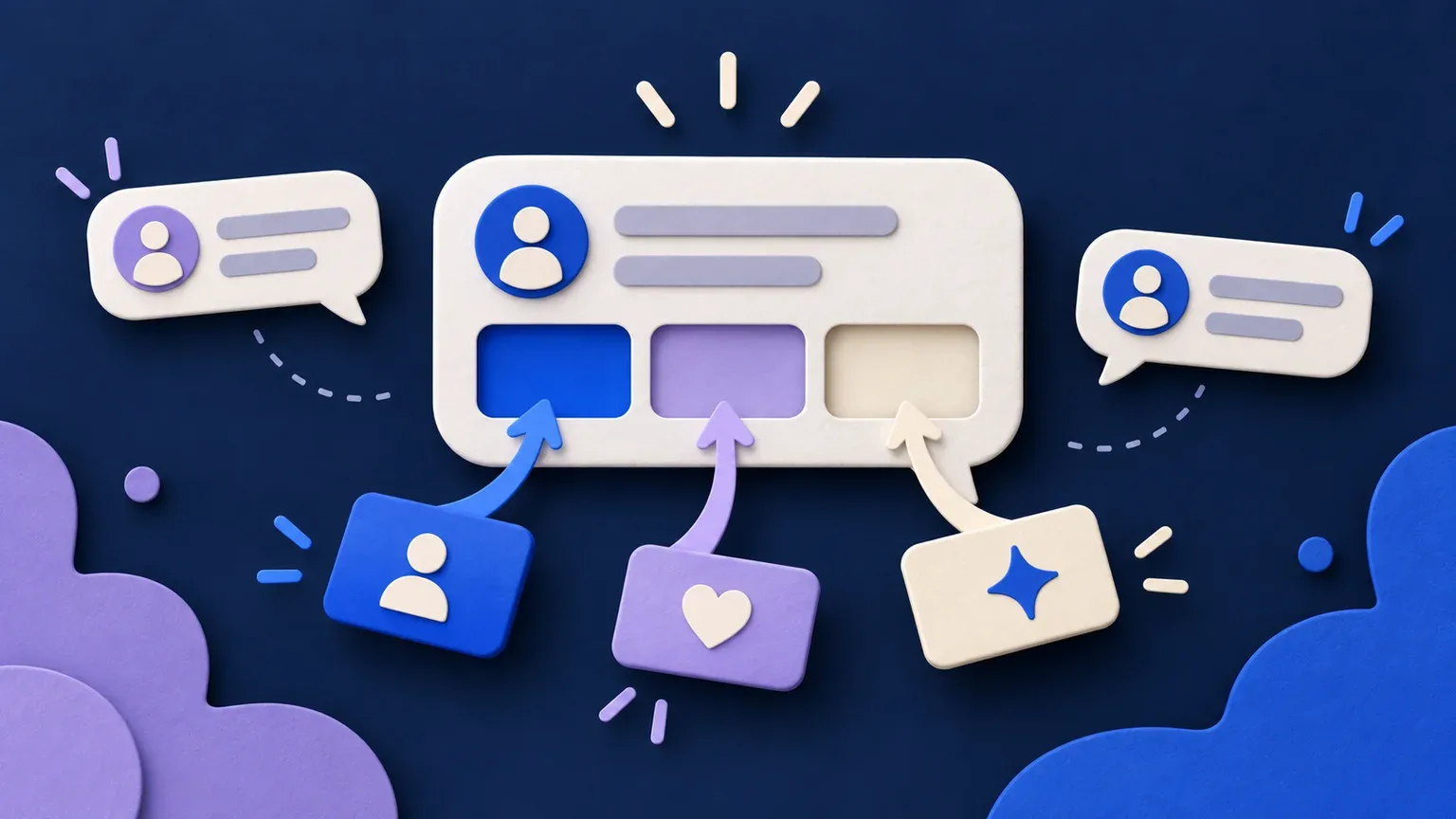
Looomy is here. If you have ever paused a story, lost your place in a tutorial or taken your hands off a game to answer the same chat question again, this is what we built it for.
Looomy brings an AI chat assistant, everyday chat automations and playful on-stream tools into one creator workspace. It helps with the repeatable work around a live stream, while you stay with the people who came to watch.
This guide takes you from a new account to your first tested YouTube Live. You do not need an existing bot, a finished knowledge base or a complicated broadcast setup. Start with one useful answer; add the rest when it earns its place.
What can you do with Looomy?
Think of Looomy in terms of the moments it helps with:
- Someone has a question. The chatbot can answer from knowledge and documents you supply, instead of guessing details about your channel.
- Someone needs a familiar link. Commands share repeatable replies, while activity-aware timers handle useful reminders.
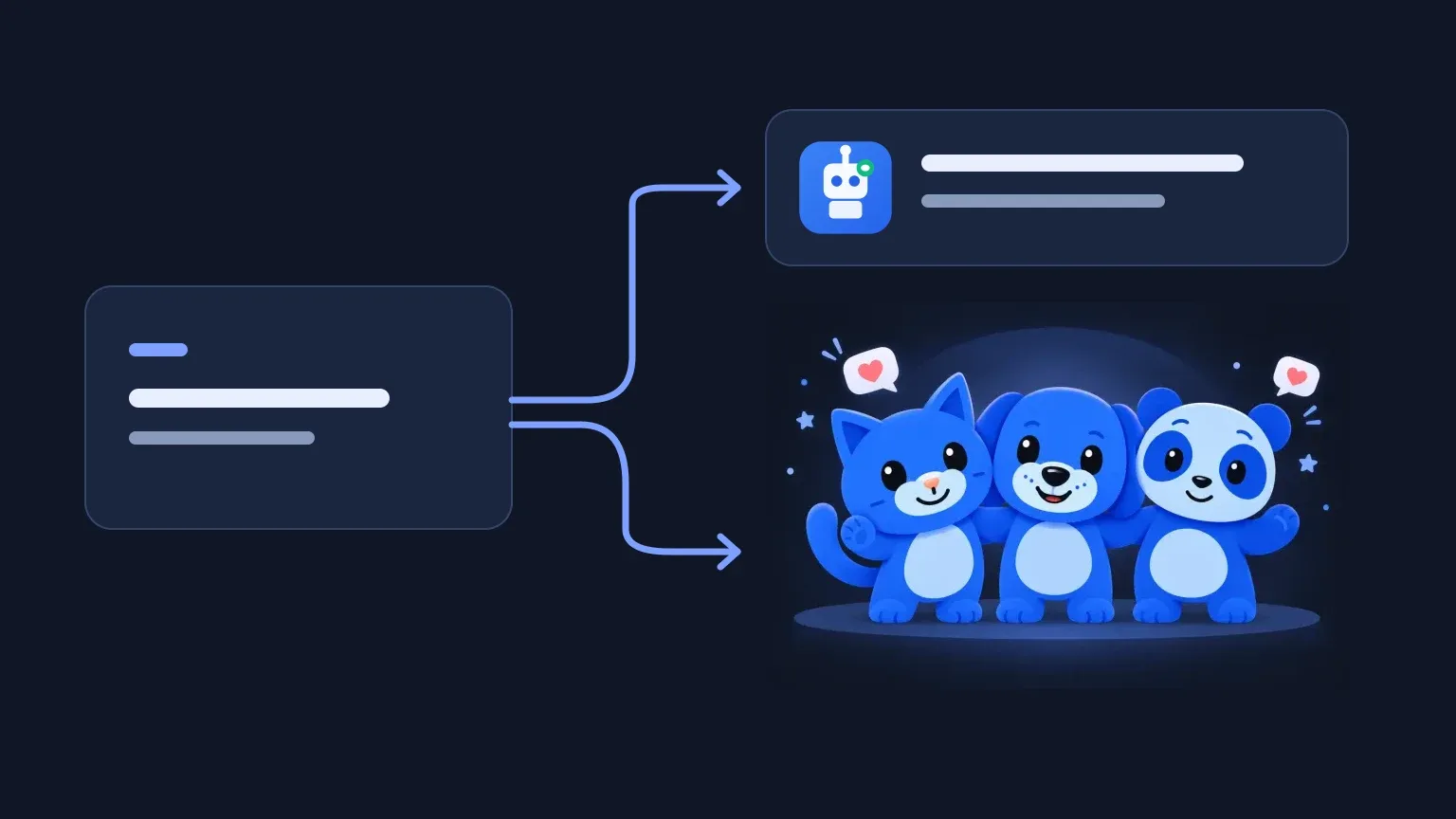
- Someone says hello. A custom command can make your on-stream Cat or Puppy wave. Stream tools also brings chat, emotes and other interactions into your broadcast.
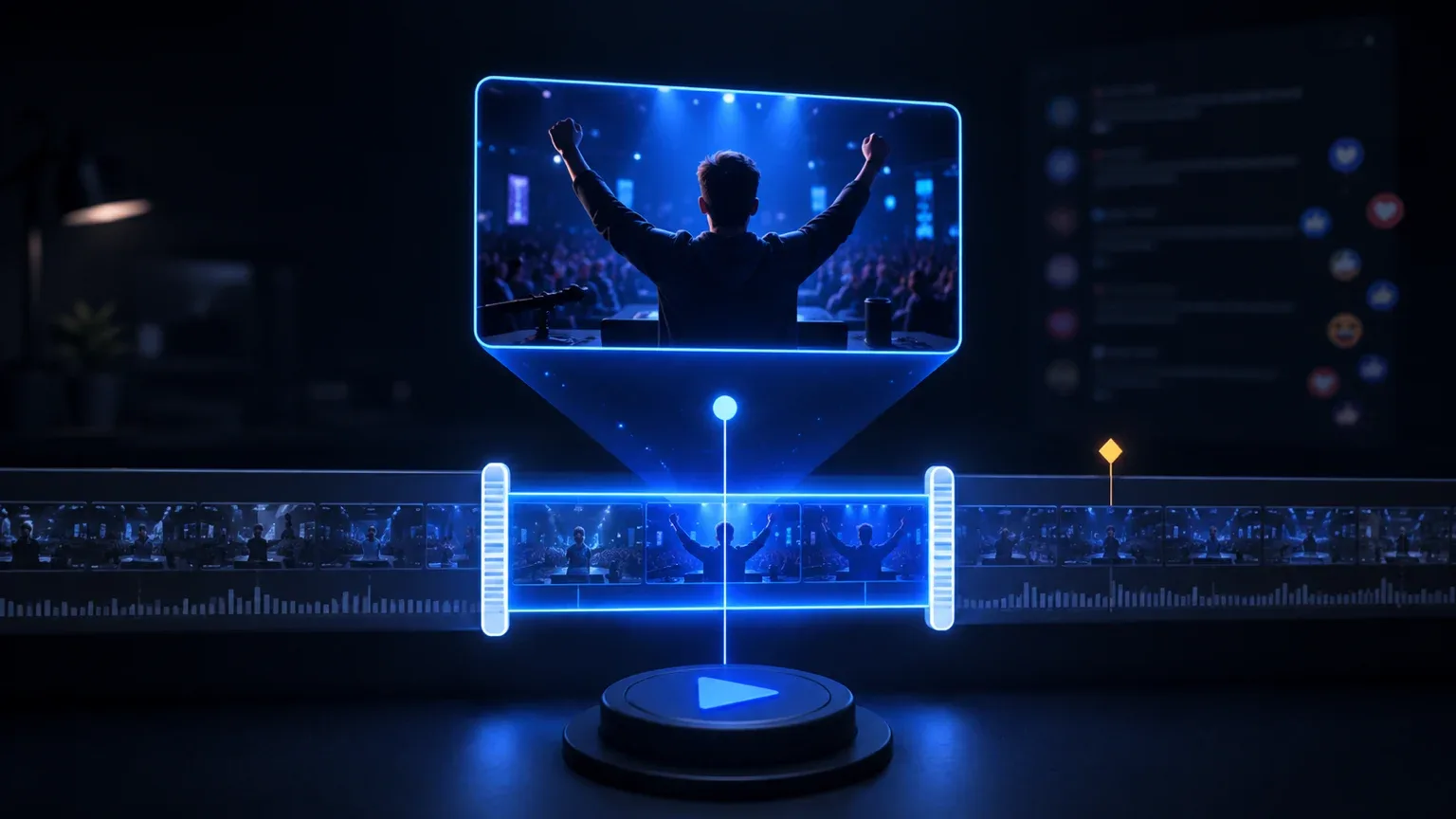
- Something worth remembering happens. Clip markers keep a window of the original stream findable for later review.
- Someone keeps coming back. Analytics help you understand active and returning chatters.
- Someone wants to find you. Your creator page at
looomy.com/@your-handleintroduces your work and shares updates, commands and clips. Turn on tips whenever you like, and viewers can tip you from the same page.
Looomy currently works with YouTube Live. You still broadcast through your usual streaming setup; Looomy does not replace YouTube or your broadcast software. Available features and allowances depend on your plan. Check current plans or Plan & Billing in your account rather than building your setup around an old quota.
1. Create your account and connect YouTube
Create a Looomy account, then open Connections in your dashboard. Choose Connect YouTube and authorize the Google account that owns the channel you stream from. If you manage more than one channel, check the connected channel identity before continuing.
Connecting your channel and letting the bot speak in chat are separate steps. First add usable knowledge below; then complete the moderator setup in Home before the live test in step 6. Looomy posts through its bot account rather than impersonating your channel.
2. Teach Looomy something useful
Open Chatbot → Knowledge. You have two ways to provide context, and you can use either or both.
Start with a few short answers
Select Knowledge → Live answers, then choose Add an answer for a question you already know your viewers ask. Write the answer the way you would want it to appear in chat. A manually added answer goes live straight away, so check it before saving.
For example, a fictional gaming channel might begin with:
| Viewer question | Creator's answer |
|---|---|
| Can viewers join a game? | Sunday streams are community games. All skill levels are welcome. |
| When do you stream? | Tuesdays and Thursdays at 7 pm IST, plus community games on Sunday at 11 am IST. |
| Where are the community rules? | Read the pinned welcome post in our community before joining a game. |
These are examples, not facts about your channel. Replace them with your real schedule, links and rules. A teacher might start with prerequisites and lesson resources; a developer with project files and installation instructions; an artist with materials and commission availability.
Let a channel scan suggest more
If your plan includes channel scans, choose Scan channel in Chatbot → Knowledge. Looomy uses published channel material to discover potential answers and questions. It does not watch your video footage or automatically know everything you have ever said on stream.
When the scan finishes, open the results and review the proposed answers under Knowledge → Review queue. Approve the ones that are accurate and useful; correct or discard the rest. Fill unanswered topics under Open questions when you have something reliable to add.
Approval applies to the knowledge Looomy can use. You do not have to approve each live reply as it is sent. A proposed answer from a scan is different from an answer you explicitly add yourself.
Add documents when a short answer is not enough
Under Knowledge → Documents, add material such as workshop notes, a project guide or event information. Wait for processing to finish and keep the document enabled if Looomy should use it.
Short Knowledge answers and Documents work together; one is not a fallback for the other. To start the bot, you need at least one approved Knowledge answer or a ready, enabled Document available within your plan. You do not need to complete both paths.
Only add information you are comfortable having reflected in public chat. Remove passwords, private contact details and internal-only notes before uploading. For more on choosing and maintaining sources, read how grounded live-chat answers work.
3. Choose how the chatbot responds
Open Chatbot → Settings. Check the chat trigger, tone, response rules and who can invoke the chatbot. Keep Use approved knowledge only enabled for this first setup so replies stay grounded in the sources you manage.
The default AI trigger is !asklooomy. With the example knowledge above, a viewer could write:
!asklooomy When are community games?
If you change the trigger, use your saved trigger in any instructions you give viewers. Start with explicit questions so you and your moderators can see what caused each reply. Looomy replies only when a viewer uses your saved chat trigger or one of its alternatives. Words, phrases and symbols work; an exclamation mark is optional.
Choose a personality that fits your stream, but keep factual answers clear. Style cannot replace missing knowledge. When you need a precise repeatable message—such as a community invitation—use a custom command instead of relying on an AI response.
4. Add your first command and timer
In Chatbot → Commands, create one shortcut your viewers will actually use. For a teaching stream, !resources could return the lesson link. For a gaming channel, !rules could explain how to join fairly.
Set the response, permission and cooldown, then save it. Command names are literal: hello and !hello are different triggers. Tell your moderators exactly what to type, including punctuation.
Next, open Chatbot → Timers if you need a recurring reminder. Start with one helpful message, such as where to find the project files. Check its timing and chat-activity settings: a quiet room does not need the same reminder repeatedly, and an activity-aware timer may wait until there is enough conversation.
Open Chatbot → Settings → Trusted viewers to choose who gets that role; watching regularly does not add someone automatically. Give extra permissions deliberately rather than making every useful command moderator-only. Our commands and timers guide goes deeper into designing a useful, quiet automation setup.
5. Bring a Companion or overlay into your stream
This step is optional. Chat answers and commands do not require an on-screen character.
In Stream tools → Companions → Looomy Companion, choose Cat or Puppy. Use Preview to try a reaction, then adjust Appearance, Placement and Messages if you want to personalize it. Save your changes.
Each character has its own browser-source link. To add one in OBS:
- Copy that character's link from Looomy.
- In OBS, add a Browser source to the scene you broadcast.
- Paste the link into URL and use the dimensions in Looomy's setup instructions.
- Position the character where it will not cover captions, gameplay or important controls.
OBS explains the URL and viewport settings in its Browser Source guide. Treat overlay links as private access links, not public links to paste into chat or a screenshot.
To make the Companion respond to viewers, return to Chatbot → Commands. Create !hello, select the character and its Greet action, then save. You can add a text response, a character action, or both. The example command is something you configure; the Companion does not automatically wave at every message containing “hello.”
Stream tools also contains other on-stream tools. Add one at a time and check it in your broadcast preview. See the browser-source setup guide when you are ready to build a richer scene.
6. Run a small test before your first full stream
With your channel connected and usable knowledge ready, open Home → Moderator setup and complete Bot moderator setup before starting:
- Copy the bot channel URL from Looomy's setup instructions. Do not guess it from a similarly named YouTube channel.
- In YouTube Studio, open Settings → Community moderation → User management.
- Add the supplied channel URL under Managing moderators, following Looomy's setup guidance, and save.
YouTube documents the current moderator settings in its live-chat moderation guide. This grants the bot chat access; it is not a request to hand over your Google password or add someone as an owner of your channel.
Have a moderator or friend help you test during a short YouTube live session with live chat enabled. In Looomy, open Home and use Start Monitoring when the stream is live. Check that the intended stream is being monitored before testing replies.
If Join streams automatically is available on your plan, you can enable it in Chatbot → Settings for future streams. You do not need it for your first manual test. Automatic joining still depends on a connected channel, usable knowledge and available plan capacity.
Run this checklist:
- Ask a question whose answer you just added, using your configured AI trigger.
- Check that the answer is accurate and short enough to read in chat.
- Ask something outside your supplied knowledge; do not treat an unanswered question as permission to invent a fact.
- Try one custom command and verify its link, permission and cooldown.
- If you added a timer, test with its activity requirements satisfied.
- If you added a Companion, keep its browser source open and run the command linked to its action.
- Confirm that the overlays do not obscure your actual content.
Pin or share one short instruction explaining how viewers can ask Looomy a question. You do not need to introduce every feature at once.
7. Save moments and learn from the stream
During a monitored stream, you or a moderator can mark something worth revisiting:
!clip first community win
Open Content → Clips afterward to review the saved moment, rename it or adjust its time range. Looomy stores a marker pointing back to the original stream, not a downloaded video or a finished social clip. Playback still depends on the original video being available. The clip-marker guide explains look-back windows and editing in more detail.
Then check Chatbot → Conversations for the replies Looomy sent. Correct your source knowledge when an answer needs work, and use Knowledge → Open questions to find gaps worth filling. In Analytics, look at active and returning chatters—not just the number watching. These are chat-participation insights, not a count of every silent viewer.
One useful correction after a stream is more valuable than adding a hundred speculative answers before it.
8. Publish your creator page, and turn on tips when you are ready
Your creator page, tips and basic tip alerts are free for every account. They work independently of chatbot monitoring and remain available after monitoring hours run out or a paid plan ends. In Creator page → Edit page, add your introduction, banner, social links and any updates you want to share, then publish. You only need a display name to publish; tips are optional.
To let viewers tip you, open Tips and connect your own Razorpay account if you are eligible. Looomy takes no commission; Razorpay processing fees may apply. Do not announce tips until your account is connected and the tip form shows on your page. Provider eligibility and payment availability apply; a Looomy account alone does not guarantee payment acceptance.
For tips that appear on screen, follow Tips → Alerts setup and add its dedicated browser source. Tip alerts are separate from YouTube support-event overlays in Stream tools. Do not interchange the links or assume a normal browser preview activates the on-stream display. Keep the dedicated source open in OBS for alerts to appear.
You can leave this entire section for later. Support is not a prerequisite for testing your chat assistant.
Already using Nightbot? Bring the useful parts with you
You do not need Nightbot to use Looomy. If you already have a setup there, open Connections → Nightbot, connect the appropriate account and start the import review.
Review Commands, Timers and Trusted viewers in order. Keep only what you still need. Read compatibility changes, explicitly accept or skip adjusted items, and leave unsupported items out. Review the final selection and plan capacity before confirming the import.
The preview does not change your Nightbot setup. Imported work appears in Looomy's Chatbot area. Test the important commands and timers, then decide which bot should answer each trigger so viewers do not get duplicate replies. An import is not an automatic retirement of your old bot.
Use the dedicated Nightbot migration checklist for the detailed compatibility and moderator handoff checks.
If something does not work
| What you see | What to check first |
|---|---|
| Your stream is not being monitored | Confirm the connected YouTube channel, that the stream is live with chat enabled, and the status in Home. Check plan capacity before retrying. |
| The bot will not start | Add an approved Knowledge answer or wait for an enabled Document to finish processing. Resolve any connection or usage warning shown in the dashboard. |
| A question gets no reply | Check the saved AI trigger, invocation permissions, cooldown and available source knowledge. Confirm moderator setup and active monitoring. |
| The answer is outdated | Correct the Knowledge answer or source document. A new wording in chat does not update the underlying fact. |
| The Companion does not wave | Check the saved command's character/action, its permission and cooldown, and that the correct browser source is open while monitoring. |
| A timer stays quiet | Check that it is active and its interval and chat-activity conditions have been met. |
| A clip will not play | Check whether the original YouTube stream or replay is available. A saved marker is not a separate copy of the footage. |
If you need help, use the contact options on the Looomy website. Share the workflow, the visible error and what you expected. Keep passwords, access tokens and private overlay URLs out of screenshots.
Your first stream does not need every feature
Connect the right channel. Complete moderator setup. Add a few accurate answers. Test one question with a friend. That is a useful first version.
Then add a command, a Companion or a saved moment because it helps your stream—not because there is another setting to fill in.
Start with Looomy, and give your next live a little more room for the good stuff.