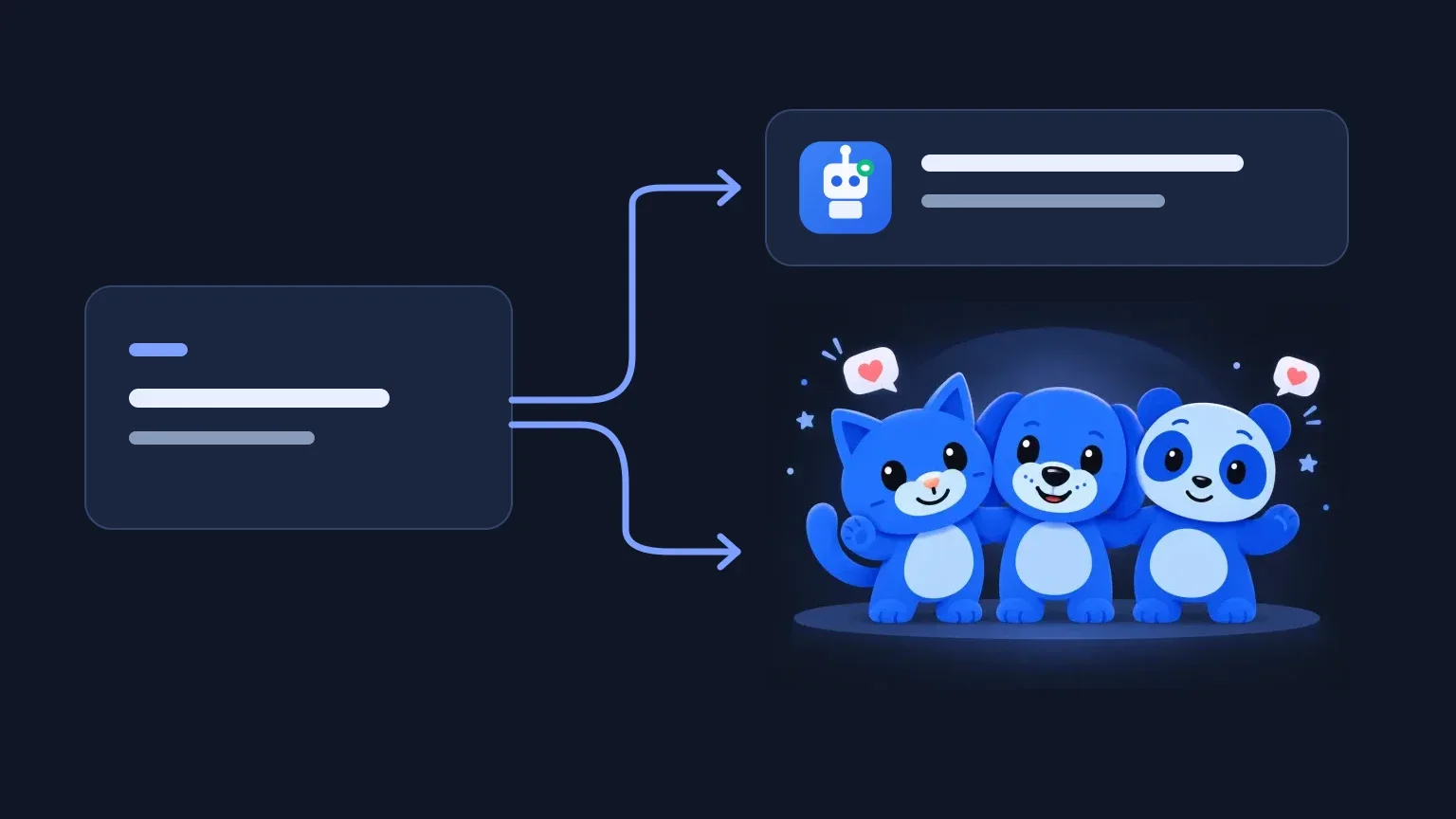
A Looomy command starts with something a viewer types in chat. It can answer a question, make a Companion react, launch Party Popper, or combine those actions. You choose what happens in Chatbot; Stream tools controls how the on-screen parts look.
This guide walks through the command editor. If you only need help with pieces such as $(user) or $(random yes|no), open the command variables guide to copy individual variables and see examples.
Create your first command
Open Chatbot → Commands → Add Command. Give the command a name, then enter its response under Chat message.
For example, use !rules as the command name and copy this message:
Keep it kind. No spoilers or repeated self-promotion. Ask questions freely, and follow moderator guidance.
Choose Everyone under Permission if any viewer should be able to request it. Pick a cooldown, save the command, and make sure its status is enabled. With your bot set up and stream monitoring running, type !rules in live chat to test the reply.
The trigger is the exact first word of the message. An exclamation mark is a convention, not a requirement: hello, !hello and $hello are different names. Choose one spelling and share it with your viewers. A command name cannot contain spaces or conflict with an existing trigger, a built-in command or your AI trigger.
You can also use a single emoji or an uploaded emote as a trigger. A repeated run of the same registered emoji or emote can trigger it too; an exact registered trigger takes priority. This does not make commands match random words in the middle of a conversation.
Add alternative triggers without duplicating the command
Alternative triggers, also called aliases, are extra names for the same command. If your main command is !setup, you might add !gear as an alternative.
They share the response, permission and cooldown. You do not need to keep two copies of your equipment list up to date. Enter the complete alternative trigger, including an exclamation mark if you want one, and press Enter to add it.
Use aliases when two names should do exactly the same thing. Create a separate command when the response or action should be different.
Personalize the chat message
For a command named !hello, copy:
Hey $(user), welcome to $(channel)!
Looomy replaces $(user) with the viewer's name and $(channel) with your channel name. The rest is ordinary text that you can edit.
Variables can also include viewer input, choose a random response, show stream uptime or count toward an event. The editor keeps a quick reference below the message field. Its link opens the variables guide in a new tab, so your unfinished command stays where it is.
Keep replies short. A saved template can become longer after names and viewer input are inserted, and a long response may be shortened to fit chat.
Choose who can trigger it and how often
Permission decides who can run the command:
- Everyone: any viewer.
- Channel members: paying YouTube members, trusted viewers, moderators and the owner.
- Trusted viewers: people in your Trusted viewers list, moderators and the owner.
- Moderators: moderators and the owner.
- Only me: just the channel owner.
Trusted viewers are people you add under Chatbot → Settings → Trusted viewers. Watching often does not automatically give someone that role. Permission to trigger a command is also separate from permission to create or edit commands.
Cooldown controls how soon the same command can run again within the stream. It is shared across viewers and alternative triggers. If Maya triggers a command and Priya immediately tries its alias, the alias does not bypass the cooldown.
For information such as rules or a community link, think about how soon a second reply would actually help. For a loud celebration effect, leave enough time for the previous celebration to finish.
Make a Companion react
First, open Stream tools → Companions → Looomy Companion, choose a character, and add its browser-source link to your broadcast software. Use the width and height shown beside that character's link. Each character you want on screen needs its own source.
Then return to the command editor:
- Find Companion and add a row.
- Choose a character and one of its available actions, such as Greet or Celebrate.
- Turn on Response for that row if the character should display the command's reply in a bubble.
- Save the command and test it from chat while monitoring is running.
One command can target multiple different characters. Add another row for each character; the same character cannot appear twice in that command. The action choices depend on the selected character.
For a greeting, combine a Greet action with:
Good to see you, $(touser)!
You can leave Chat message empty for a reaction without a bot reply in chat. An empty-message command must still have a valid Companion action or overlay effect. Turning off a character's Response switch only hides its bubble; it does not mute a non-empty chat message.
Appearance, positioning and bubble behavior belong in Stream tools, not in each command. That lets several commands reuse the same character setup.
Launch Party Popper with a command
Open Stream tools → Stream moments → Party Popper to customize its particles, motion and sound. Add its overlay link as a browser source using the dimensions shown beside the link, and save your settings. Test burst previews the effect; it does not create or test a chat command.
In your command editor, add Party Popper under Overlay effects. Enable its Response switch if the rendered reply should also appear on the effect overlay.
For a command named !celebrate, try:
$(user), that deserves a celebration!
You can add a Companion's Celebrate action to this same command. A valid trigger can then produce the chat reply, the character reaction and the confetti without requiring viewers to type three commands.
These are independent on-screen players, not a timed sequence. There is no setting that guarantees the character reacts first or that confetti starts on exactly the same frame. Both receive the command's actions and play according to their own current state.
If you select Emotes only for Party Popper, upload your emotes in Content → Emotes first. After changing that shared library, refresh open overlay sources. The same library can be used by other features; it is not a separate collection for each command.
Reuse a response with a follow-up command
The optional Follow-up → Run another command field lets one command pass its rendered message into another custom command. The second command receives that text as $(query). Looomy sends the final response, rather than posting every intermediate message to chat.
For example, create !announce with this message:
Announcement: $(query)
Then create !next with this message and select !announce as its follow-up:
The next round starts in five minutes.
Typing !next produces Announcement: The next round starts in five minutes. You can reuse that announcement wording while keeping different source messages separate.
This is response reuse, not a way to queue another command's visual actions. Attach Companion and overlay actions to the command the viewer actually triggers. Those actions can show the final rendered reply. The original trigger also owns the usage count and cooldown; $(command) and $(count) retain that original command's context through the follow-up.
Linked targets must be available, and viewers must meet their permission requirements. Loops and overly long chains are rejected. If a target later becomes unavailable, the runtime falls back to the invoking command's own response instead of running the invalid chain. Test the full flow after editing either command.
Built-in commands and scheduled commands
Rows marked Built-in perform product-owned jobs. !commands lists custom commands and supports moderator command management; !clip saves a stream moment to Content. Their names and behavior are fixed, but their available access, cooldown and enabled settings can be managed in the list. See the clipping guide before relying on clips during a stream.
Under Chatbot → Timers, a timer can repeat messages or run a selected command. Use a command-backed timer when its response should stay maintained in one place. A scheduled run has no viewer behind it, so viewer-specific variables are not appropriate there. The commands and timers starter guide explains intervals and activity requirements.
If you already use Nightbot, follow the import guide and review any items marked as needing attention before expecting them to run.
When a command does not respond
Check these in order:
- Monitoring and setup: is Looomy monitoring this stream, and is the bot set up correctly?
- Trigger: did you type the saved name or an alternative as the first word?
- Status: is the command enabled, within your plan allowance and free of a Needs attention warning?
- Permission and cooldown: can this viewer run it, and has the cooldown finished?
- Output: is the message empty on purpose? A reaction-only command will not post a bot reply.
- Visual sources: are the correct character and effect sources in the active broadcast scene? For Party Popper, check that command bursts are enabled too.
- Follow-up: is the linked command still available and allowed for the viewer testing it?
Start with one plain reply, confirm it works, and then add a reaction or effect. Testing one part at a time makes it much easier to see what needs fixing.