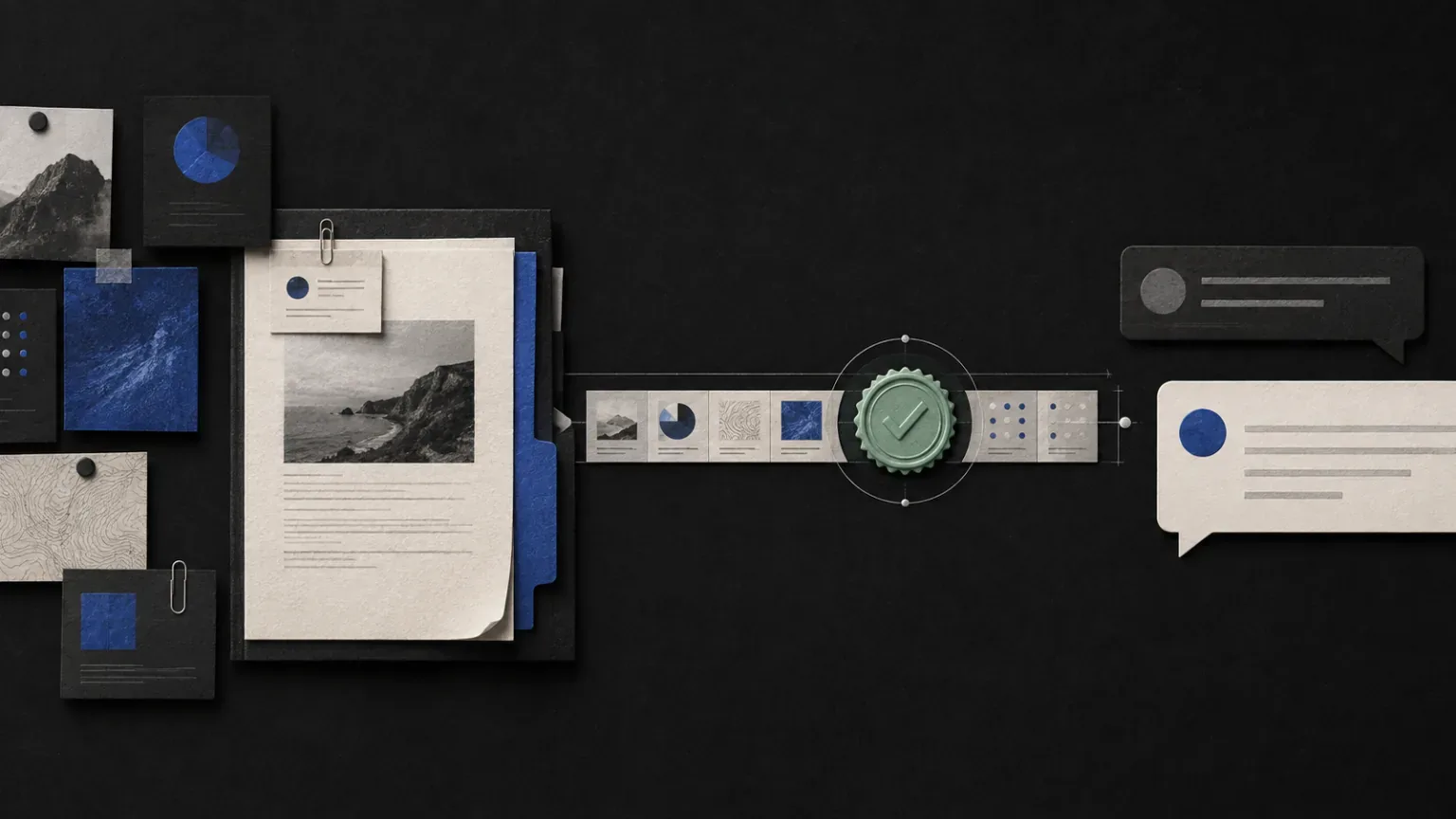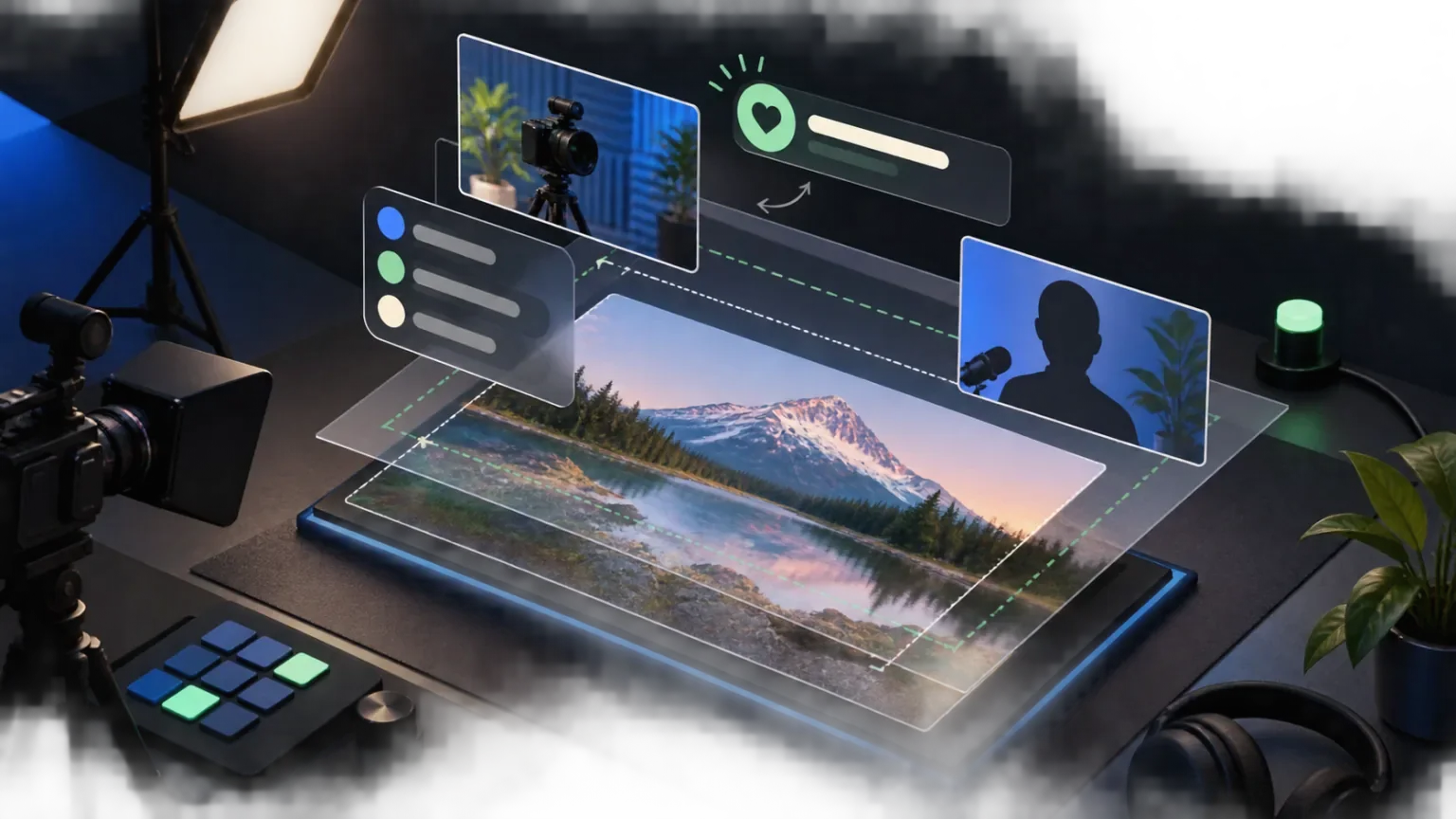
A browser-source overlay is a web page with a transparent stage. Your broadcast software places that stage above the camera, gameplay or presentation, and the page renders whatever should appear on stream.
That simple model makes browser sources unusually flexible. They are not limited to one broadcasting application: if a tool accepts a browser source, it can usually display the same overlay URL. The important work is making the page behave like broadcast graphics rather than an ordinary website.
Understand the permanent-link model
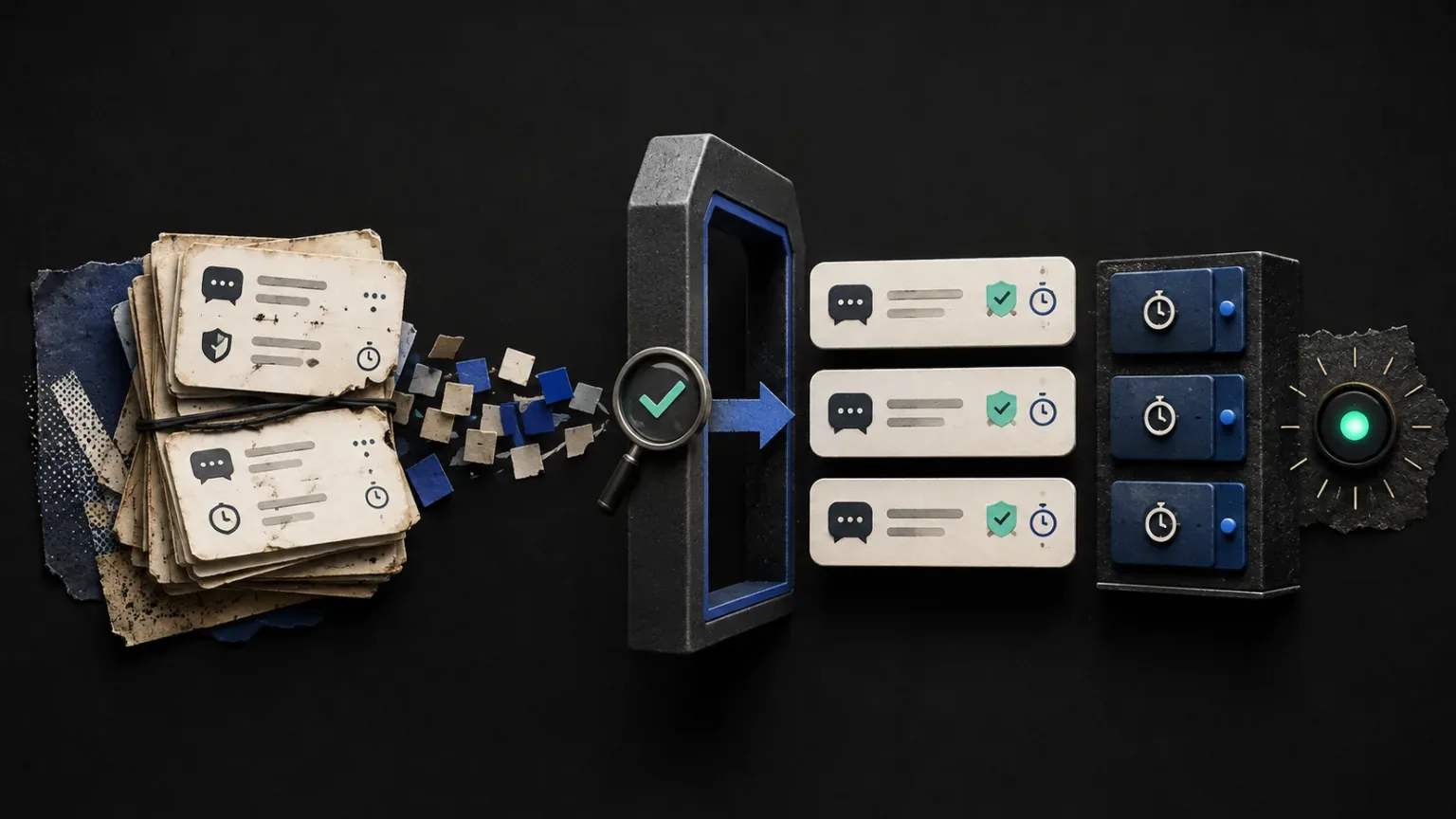
A practical overlay URL should be stable. You add it to the scene once, choose its dimensions and leave it there between streams. Live events change what the page displays; they should not require you to replace the source every time.
Treat that URL like a stream key. It may identify the overlay and the creator workspace even when it does not expose account credentials. Do not paste it into public screenshots, chat messages or tutorial videos without masking the private portion.
Looomy's Live Studio keeps setup instructions and permanent browser-source links beside each visual tool. The same setup principle applies whether you use OBS or another application with browser-source support.
Match the canvas before styling the element
Start with the broadcast canvas. A 1920×1080 stream and a vertical 1080×1920 stream need different composition decisions even when the alert itself is identical.
Use a browser source that matches the scene dimensions whenever possible. This makes coordinates predictable and avoids scaling small text into a soft image. Keep critical visuals away from the outer edge, where platform interfaces and device crops may cover them.
Before adjusting colors or animation, confirm:
- the browser source fills the intended canvas;
- the background is transparent;
- text remains readable at the final stream resolution;
- the visual does not collide with captions, chat or game UI;
- the source stays correctly positioned after scene changes.
Design for a distance
An overlay is normally viewed inside a video player, not at dashboard distance. Fine borders, small labels and low-contrast text that look tasteful in a browser tab can disappear after video compression.
Prefer a clear silhouette, a short message and deliberate contrast. Use motion to announce a change, then let the frame settle. Constant movement competes with the creator and quickly becomes visual noise.
The same restraint applies to sound. A support alert may deserve audio; a recurring status update usually does not. Every effect should tell the audience something they would otherwise miss.
Test the transparent output
Opening an overlay URL in a normal browser can be misleading because the tab may show a default background. Test it inside the broadcast application over both a light and dark scene.
Run at least four checks:
- Trigger the visual more than once to confirm it resets cleanly.
- Change scenes while it is visible.
- Refresh the browser source and verify it reconnects.
- Leave it idle long enough to confirm it does not show stale state.
If the overlay is interactive, test several events close together. The useful question is not only “does it animate?” but “what happens when the next event arrives before this one finishes?”
Build a fallback into the scene
Live production should remain understandable when an optional visual is unavailable. An overlay disconnect should not cover the stream with an error page or block the underlying scene.
A transparent idle state is the best default. Keep essential information—such as the topic being taught or the current game score—in a source you can update manually if it is truly required for the broadcast.
For troubleshooting, keep a duplicate test scene that is never sent live. It gives moderators or producers a safe place to refresh a source, inspect its dimensions and trigger a preview without disrupting the audience.
Keep the scene maintainable
Name sources by their job rather than their vendor: Support alerts, Live companion or Viewer spotlight will still make sense if the implementation changes later. Group related sources and document the intended canvas size in the source name when you run both horizontal and vertical formats.
Avoid stacking several visuals in the same corner. Give each tool a territory and a priority. A supporter moment can temporarily take the main position while ambient companion movement stays quieter elsewhere.
A browser source should disappear into the production
The technology is working when the audience notices the moment, not the web page producing it. Stable links, correct canvas sizing, transparent idle states and short purposeful motion make an overlay feel native to the stream.
Once that foundation is reliable, you can add richer interactions without rebuilding every scene. Explore the available browser-source visuals and test each one in a private scene before bringing it into a live room.