You are halfway through explaining something when another viewer asks for your setup. A moderator pastes the gear list. Someone else asks when you stream next. Meanwhile, a recurring reminder drops into chat for the third time, even though almost nobody is talking.
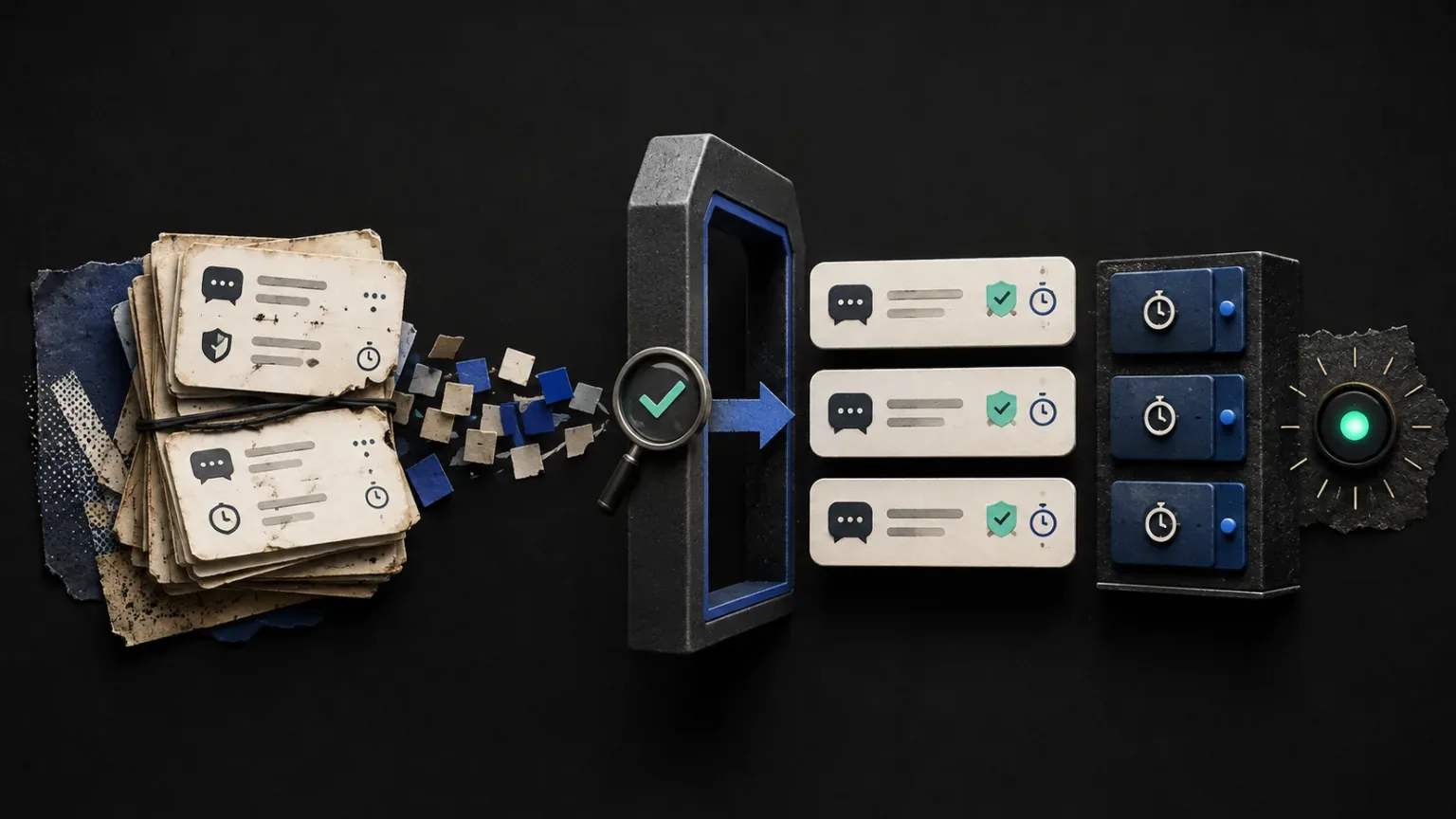
A useful automation setup handles those moments with a few clear choices: let viewers request information when they need it, repeat only the reminders that deserve regular space, and give every automated reply a limit on repetition.
Start with five custom commands and one timer. The examples below are a menu: keep the ones that answer real questions in your community.
Choose a command or a timer for each job
A command responds when someone types its trigger, such as !setup. A timer makes a message eligible to send after an interval, subject to its activity requirements and the bot being active for the stream.
Use a command for information a viewer wants at a particular moment. Use a timer for an occasional reminder that helps people participate without having to ask first.
| Creator task | Start with | Why it fits |
|---|---|---|
| Share the microphone and camera you use | A !setup command | Viewers can request the details when they are curious. |
| Explain what you are doing today | A !today command | Someone arriving late gets the current context. |
| Share your community link | A !community command | The link is available on demand. |
| Help newcomers discover those commands | One occasional timer | A short reminder makes the useful triggers visible. |
In Looomy, manage both under Chatbot, using Commands and Timers. The triggers in this guide are examples of custom commands you create; adding an exclamation mark to a word does not automatically create its response.
For a walkthrough of the editor, including aliases, character reactions and Party Popper, see the complete Looomy command guide. To personalize a reply with a viewer's name or other changing details, use the command variables reference.
Create five commands viewers can remember
These sample responses use an imaginary streaming setup. Replace the schedule, equipment and topic with your own details. Replace [your community link] with a real public invitation before enabling that command; the brackets are an editing placeholder, not a bot variable.
Rules: !rules
Keep it kind. No spoilers, personal attacks or repeated self-promotion. Ask questions freely, and follow moderator guidance.
Keep this short enough to read while watching. If your community has detailed rules, point to them separately. A rules command shares expectations; moderators still need to act when someone ignores them.
Schedule: !schedule
I usually stream Tuesdays and Thursdays at 8 PM IST. Check the channel's upcoming streams for changes.
Include the time zone. Avoid a relative answer such as “tomorrow evening,” which becomes misleading as soon as the day changes. Review this command whenever your usual schedule changes.
Equipment: !setup
Today's setup: USB microphone, mirrorless camera and OBS Studio. Ask about a specific piece of gear if you'd like more detail.
Replace the generic equipment with the actual items you want to share. A short list is easier to use in chat than an entire equipment page pasted into one reply. If you already maintain a public gear page, a brief introduction and its link may be enough.
Community: !community
Continue the conversation after the stream: [your community link]. Read the welcome channel before posting.
Use a destination newcomers can actually access, and test the invitation while signed out. Change the welcome instruction if your community lives somewhere other than a chat server.
Current topic: !today
Today we're building a stream overlay, testing it in OBS and taking questions between steps.
Update this before each stream. It is especially useful for workshops, challenges and streams with a clear agenda. If you cannot keep it current, leave it disabled until you have a reliable pre-stream habit.
For these public information commands, allow ordinary viewers to request the response. Treat permission to edit commands as a separate decision, reserved for people you trust to manage the channel.
Set cooldowns around the usefulness of another reply
A cooldown limits how quickly a command can reply again. As an initial experiment, try a 30-second cooldown for frequently requested information, then watch what happens during a real stream. That is a suggested starting point, not a universal setting or a claim about the product default.
If several viewers request the same link together, one visible reply may answer all of them. If the chat moves quickly enough that a reply disappears before the next person sees it, a long cooldown may be frustrating. Adjust one command at a time so you can see the effect.
Looomy's command cooldown is shared across viewers for that command within the stream. Testing only with the same account will not show the whole experience: ask a second viewer to try the same trigger immediately after a successful reply.
YouTube's slow mode limits how often individual viewers can send chat messages. A bot's command cooldown governs its automated replies. Configure each for the problem you are trying to solve.
Add one timer that introduces the commands
Begin with a single discovery reminder:
New here? Try !today for the plan, !setup for the gear, or !community to hang out after the stream.
Only mention commands you have actually enabled. This gives the timer a clear job without repeating the full equipment list, schedule and invitation throughout the stream.
For a first experiment in Looomy, create a timer with that message, a 15-minute interval and a Minimum Activity requirement of five viewer messages. These are example settings to evaluate, not recommended defaults for every channel. A quieter room may work better with commands alone.
The two timer conditions do different jobs:
- Interval: enough time must pass from activation or the timer's previous send.
- Minimum Activity: enough viewer messages must exist in the recent activity window shown in the editor. Looomy's own replies do not count.
Both conditions must be satisfied. Five messages early in the stream do not keep qualifying forever; the activity check looks at a rolling window. If the timer becomes due while activity is too low, passing the time threshold alone will not make it send.
This also makes the interval an eligibility rule, not a promise that a message will arrive at an exact second. During testing, check whether the timer is active and its activity requirement is met before shortening the interval.
Looomy can rotate multiple messages within one timer or run a selected command. Keep the first setup to one plain message. If you later want to repeat an existing command's answer, a command-backed timer lets that answer stay maintained in the command instead of in two separate places.
Test the setup before relying on it live
Use a short test stream with a moderator or trusted viewer. Check the actual chat output as well as the saved settings:
- Try every exact trigger. In Looomy,
!setupandsetupare different custom command names. Use the spelling you have shared with viewers. - Read every response. Confirm the schedule, time zone, equipment and current topic are correct. Open each link and check that no editing placeholders remain.
- Try a repeat from another account. Request the same command during its cooldown, then again after the cooldown expires.
- Check permissions as a viewer. Public information commands should work for the intended audience. Any restricted command should reject people outside its allowed role.
- Exercise both timer conditions. Observe a due timer when recent activity is below the threshold, then add enough viewer messages within the editor's activity window and confirm it becomes eligible to send.
- Check the next-stream behavior. Review Auto-start on Live deliberately, and know which timers you will activate manually.
- Check for duplicate responders. If another bot is connected, make sure it is not answering the same trigger or repeating the same reminder.
If you are bringing an existing setup across, use the Nightbot import checklist to review commands and timers before enabling them.
Give the first stream a small review
After the stream, ask your moderator which questions still required a manual reply and which automated messages felt repetitive. Update a confusing response, remove an unnecessary timer, or add one command for a question that came up repeatedly.
When viewers ask the same underlying question in many different ways, a fixed trigger may become awkward. That is a useful point to consider grounded AI answers based on approved channel knowledge. Keep exact links and predictable announcements in commands; use approved knowledge for questions that need more context.
For your next stream, open Chatbot, add the commands your viewers need, and test one discovery timer. Put reviewing !today and checking the community invitation on your pre-stream checklist so the setup stays useful after its first outing.